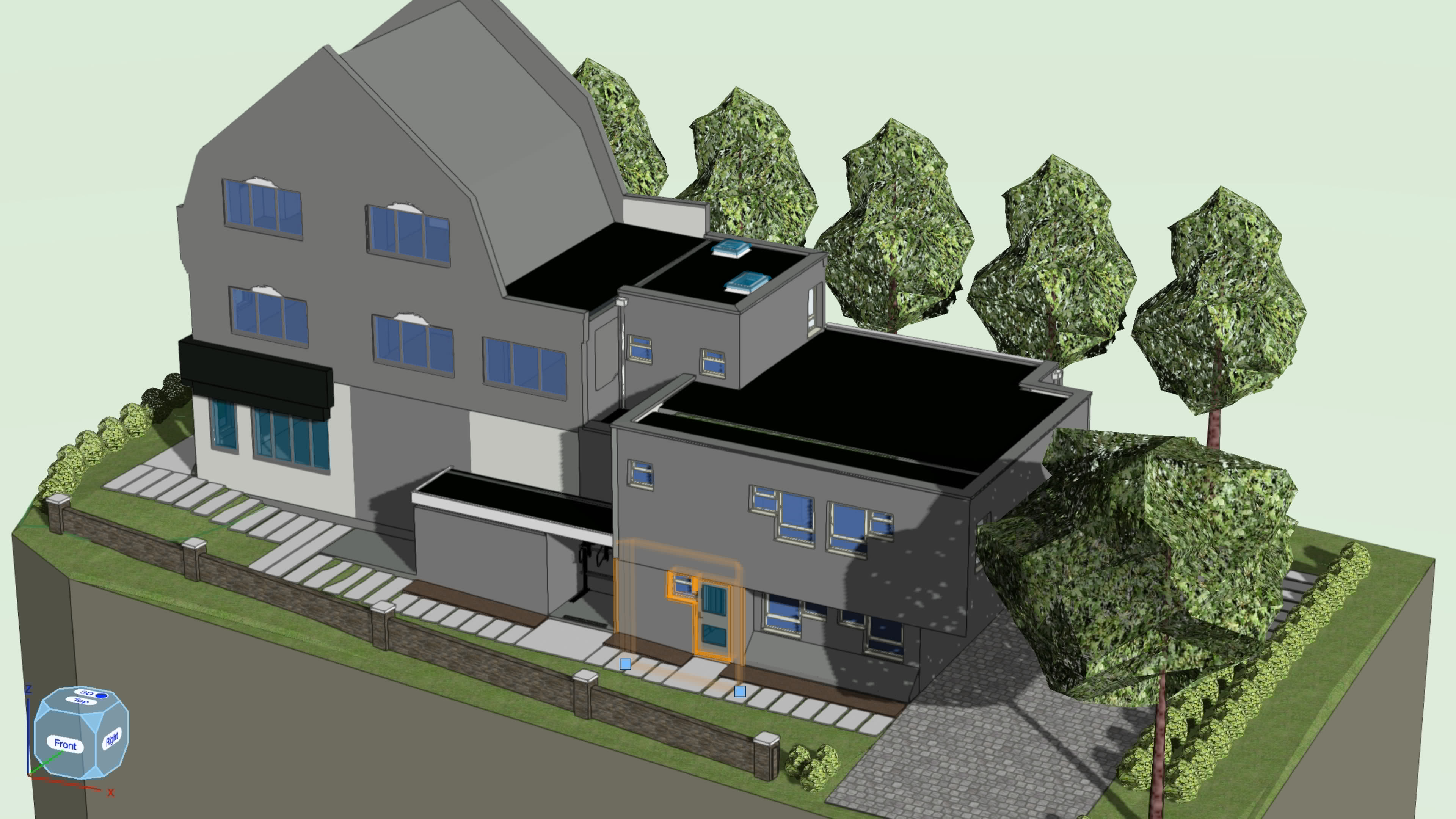
On most BIM projects today, teams work across different tools. Architects, interior designers, landscape designers, structural engineers, and MEP consultants often collaborate in one model environment even though they use different software. And somewhere in the mix, someone is almost always working in Revit.
If you use Vectorworks and your collaborators use Revit, smooth coordination comes down to understanding a few shared concepts, keeping your spatial setup aligned, and managing imports and exports in a predictable way. This guide walks through the essentials so you can avoid surprises and keep the workflow steady.
TERMINOLOGY DIFFERENCES BETWEEN REVIT AND VECTORWORKS ARCHITECT
Vectorworks and Revit both use BIM objects, but the wording can differ.
Revit System Families vs. Vectorworks Plugin Objects
Vectorworks plugin objects such as walls, doors, slabs, and hardscapes match Revit’s system families. A “family type” in Revit is essentially the same as a Vectorworks style. For example:
- Revit Wall Family = Vectorworks Wall object
- Revit Wall Type = Vectorworks Wall style
Loadable Families
Revit also uses loadable families for components like windows, furniture, casework, fixtures, planting, and much more. These live in RFA files and get loaded into the project. Knowing this helps you understand how and why certain elements appear when a Revit file comes your way.
Loadable families are roughly equivalent to Symbols in Vectorworks. When you import a a .rfa file into Vectorworks, it will come in as a Symbol.
The Three Origin Points
Both Vectorworks and Revit rely on three major points for positioning a project:
- Internal Origin (fixed)
- User Origin / Project Base Point (moveable)
- Survey Point (real world coordinates)
These concepts map closely between the two platforms. When everyone uses them correctly, spatial coordination becomes much easier. Click here for more information on origin points in Vectorworks.
Spatial Coordination Starts With the BEP
A BIM Execution Plan (BEP) defines how the team collaborates. It outlines deliverables, model structure, spatial coordination rules, milestones, naming conventions, and the project’s common data environment.
One of the most important items defined in the BEP is the project origin point. This is the real-world coordinate everyone must use when exporting or referencing models. You might hear it called the project datum or building origin, but it all means the same thing: a single shared reference point.
If this point is inconsistent, every imported model will land in the wrong place. Agree on this early and stick to it.
How Vectorworks Handles Origins and Coordinates
Vectorworks uses several coordinate tools that directly parallel what Revit users see on their side.
Internal Origin: This is the reference point Vectorworks uses when exporting models. Keep your model close to the Internal Origin to maintain performance.
User Origin: This is the coordinate grid’s 0,0 point. You can move it to match the coordinates in the BEP, which effectively shifts the coordinate system without moving the geometry.
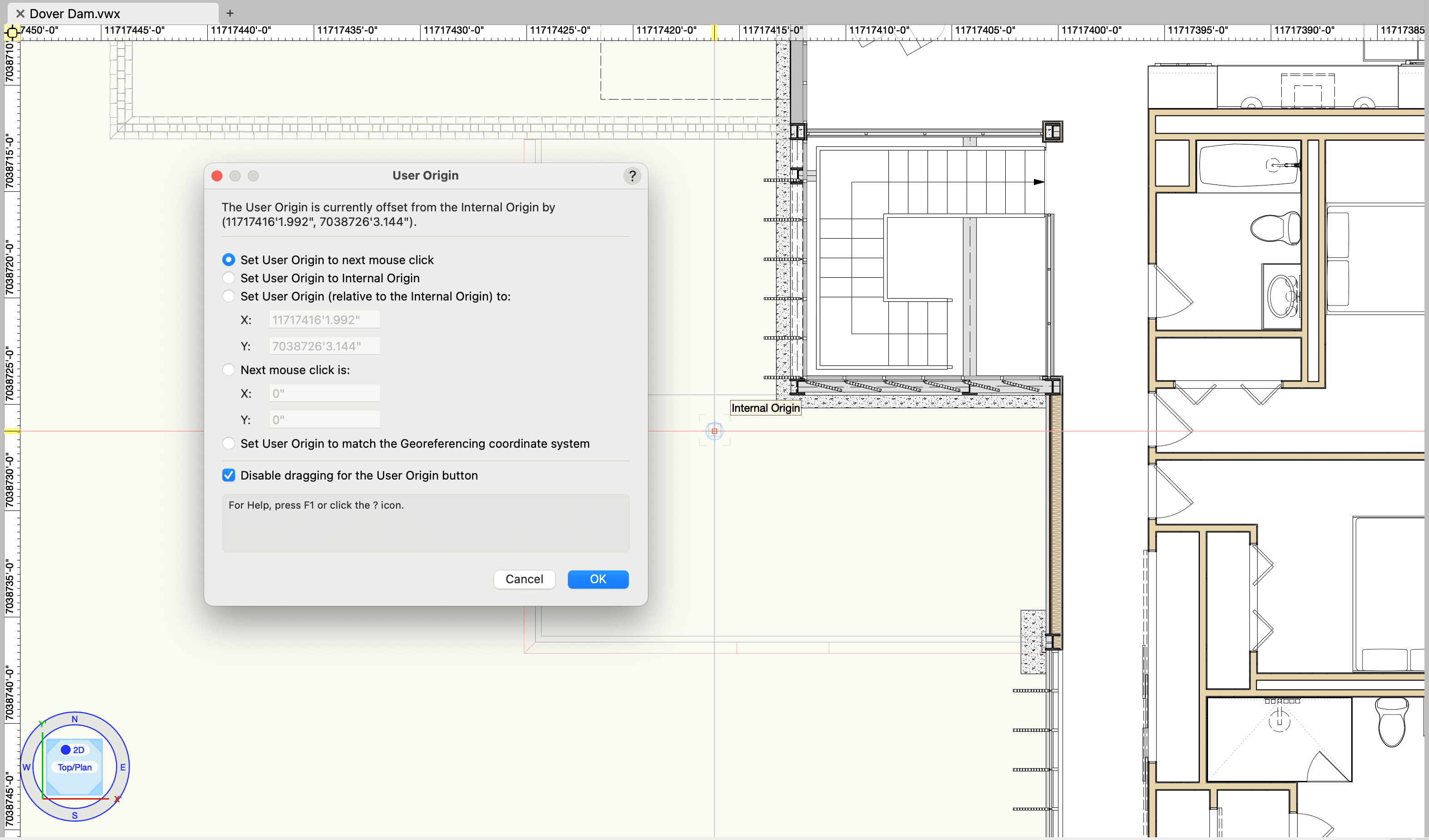
Relocating the User Origin to match project origin coordinates.
Survey Point: This is your simplest link to real-world coordinates. Input the known survey values, align it with the Internal Origin, and set the angle to true north. Once configured, every design layer syncs to the same coordinate system, keeping exports consistent with your consultants’ files.
Georeferencing and Elevation: Georeferencing ties your model to real-world latitude and longitude or eastings and northings. Setting this and the project elevation ensures your exports match the BEP’s spatial requirements.
How Revit Handles Origins
Revit’s system reflects the same logic, just with different tools.
- Internal Origin: fixed and unmoving
- Project Base Point (PBP): equivalent to the Vectorworks User Origin
- Survey Point: same purpose as Vectorworks’ Survey Point
These points start in the same location, but both Vectorworks and Revit users can move the PBP and Survey Point independently. As long as both of your Internal Origin coordinates match the BEP’s project origin, your exports and imports will align correctly.
Project North vs True North
Both Vectorworks and Revit let you work in either orientation:
- True North shows the project’s actual orientation on the site.
- Project North rotates the model so building grids align horizontally and vertically on screen.
You can model in Project North, then use georeferencing to correct the true north rotation automatically for export. This is standard practice and avoids constant rotation during daily work.
REVIT AND VECTORWORKS INTEROPERABILITY ESSENTIALS
Model Federation
A federated model combines separate discipline models into a single environment for coordination. The key point is that authorship stays intact. Structural engineers don’t edit architectural plans, and architects don’t modify MEP layouts.
Federation makes clash detection, compliance checking, and design reviews more reliable. Tools like Solibri can check clearances, accessibility, fire safety, and more. This helps catch issues before construction and makes the entire process more predictable.
Exporting From Vectorworks to Revit
Vectorworks gives you several ways to streamline Revit exports:
Export Native Revit Objects: Walls, slabs, doors, windows, and extrudes can be translated into Revit-native elements while preserving textures and design intent.
Cloud Export: Large Revit exports can run in the Vectorworks Cloud so your local machine stays free for design work. You can export to multiple Revit versions, making it easy to work with consultants on older releases.
Scheduled Exports: Automate recurring exports on a schedule. This keeps your shared Revit files always up to date without manual effort.
Importing and Referencing Revit Files
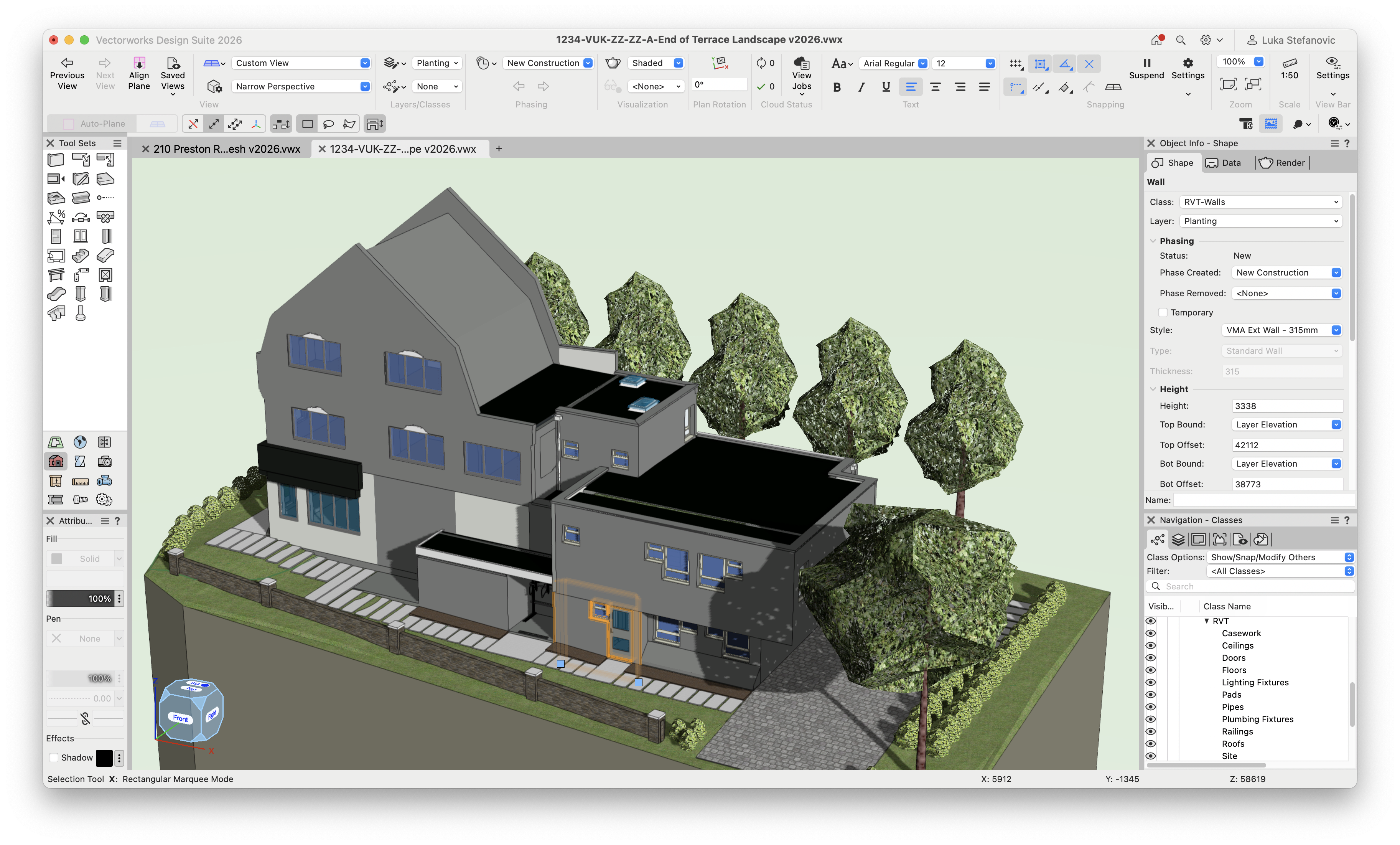
A Revit building imported into a Vectorworks landscape.
Vectorworks Cloud Services can also import Revit files for you, freeing your machine from long processing times.
When you import or reference directly, you can:
- Choose specific sheets or 3D views
- Select which Revit object categories to bring in
- Map categories to the Vectorworks object types you want
- Add prefixes to keep imported content organized
- Save your import settings for consistency
Referencing is ideal when you need the consultant’s model to stay live and up to date. Importing works best when you need editable geometry.
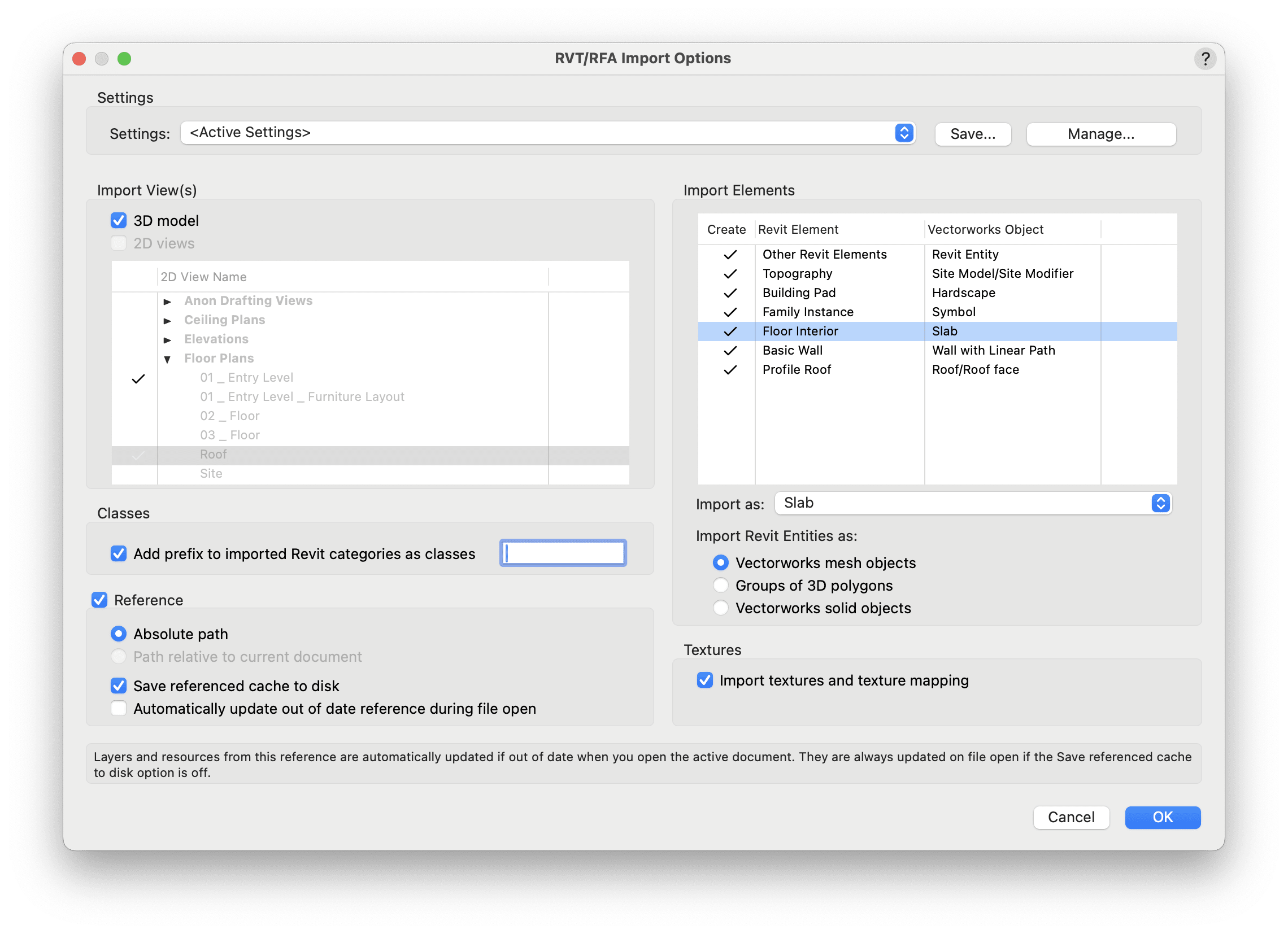
RVT/RFA Import Options dialog box in Vectorworks.
Stay in the know with the latest insights
Subscribers receive news, customer stories, success and learning tips, event information, and other important announcements from Vectorworks.
By submitting this form, you agree that Vectorworks, Inc. and its authorized partners may contact you in regards to news, offers, and the use of our software, services, and platforms. Learn more about our privacy practices and your data on our privacy page.*