When you’re running point on a live event, there’s little time for guesswork or missed details.
ConnectCAD, Vectorworks’ AV design software, puts robust tools right at your fingertips, streamlining every phase — from the very first schematic sketch to the last-minute show-floor revision. Whether you’re handling a single venue or multiple, sprawling spaces, you get the clarity, flexibility, and confidence needed to deliver seamless live events.
A Complete Solution Designed for Live Event Pros
You can build your entire network workflow inside Vectorworks with ConnectCAD’s dedicated suite:
Schematic Design
Start your planning process by quickly laying out devices and circuits in 2D. You’ll see everything mapped visually, making it easy to spot bottlenecks or plan for redundancy.
To discover more about AV install efficiency with ConnectCAD, click here.
Cable & Connection Tracking
Never lose track of cables. Links between devices can be mapped and documented, keeping the whole network transparent for you and your crew.
Click here to learn more about cable planning in ConnectCAD.
Custom Device Authoring
Create or edit any device with just a few clicks. Attach sockets, images, and Record Formats with metadata (like IP addresses, VLANs, or locations) to each device. This data syncs across worksheets and reports, so you’re always working from accurate, current information—there’s no double-entry or confusion.
Learn more about customizing your workflows with ConnectCAD by clicking here.
Easy Editing & Customization
With ConnectCAD, you’re always in control. You can edit device sockets directly from your drawings. When a socket turns red, double-click it to Edit Details or use the Socket tool to add new ports on the fly.
To duplicate devices, use the eyedropper in the Schematic Device tool set to copy socket assignments and visual properties, giving you consistency when the devices share the same make and model.
When you expand your design, like adding more devices or increasing the complexity, you can enlarge a device’s bounding box right from the Edit Device screen to fit more sockets or labels, keeping your drawings tidy and readable.
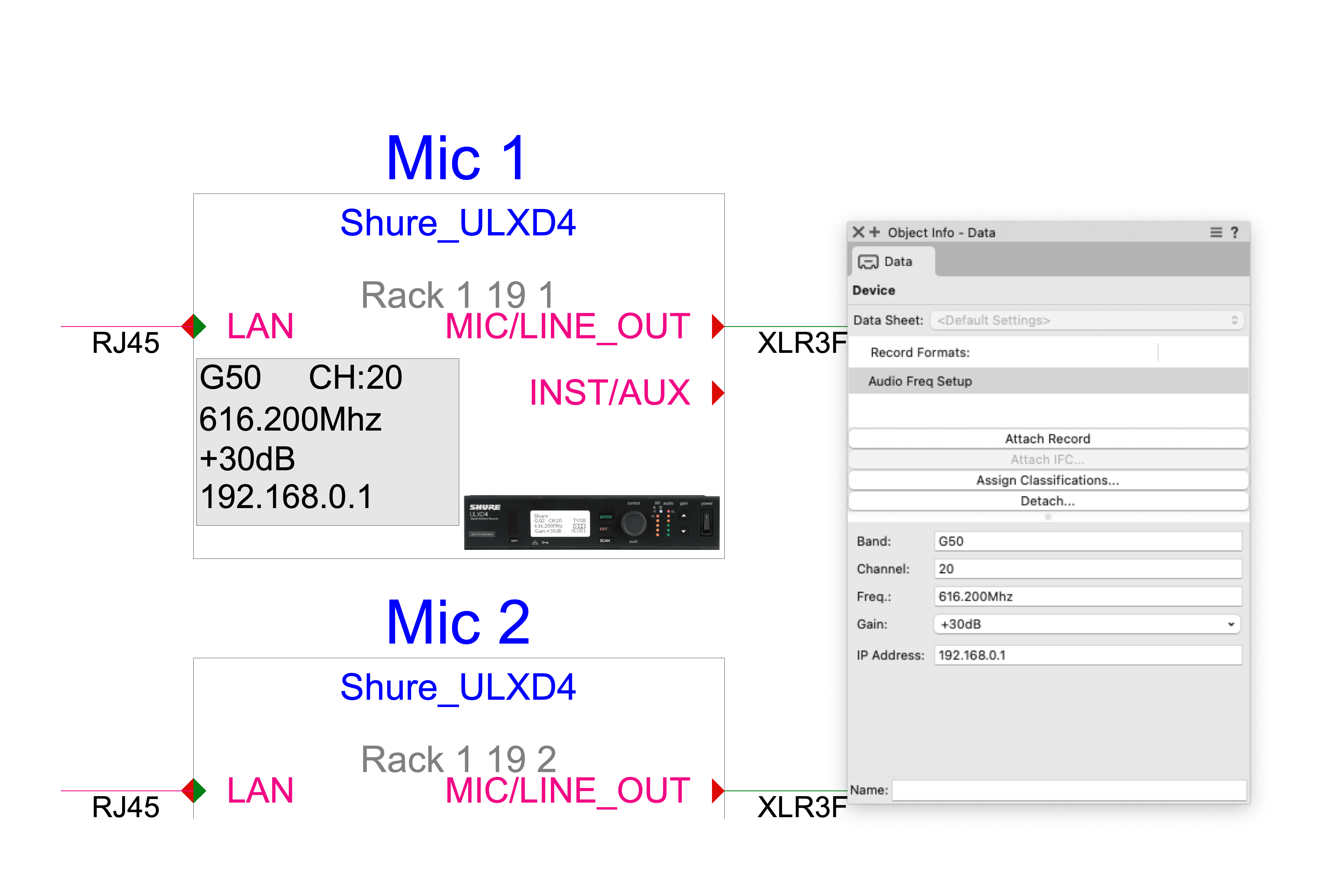
Schematic Device displaying info from a Custom Record Format.
Room & Layer Organization to Stay on Track
If you’re juggling different spaces or departments, the Layout Room and Design Layer tools will help separate zones, technical areas, or workflow stages.
From there, it’s simple to create drawings that reflect real-world venue layouts and professional handoffs. Each room or layer brings clarity, so even large productions stay organized, and you and your team know exactly where everything belongs.
3D Rack Planning & Dynamic Worksheets
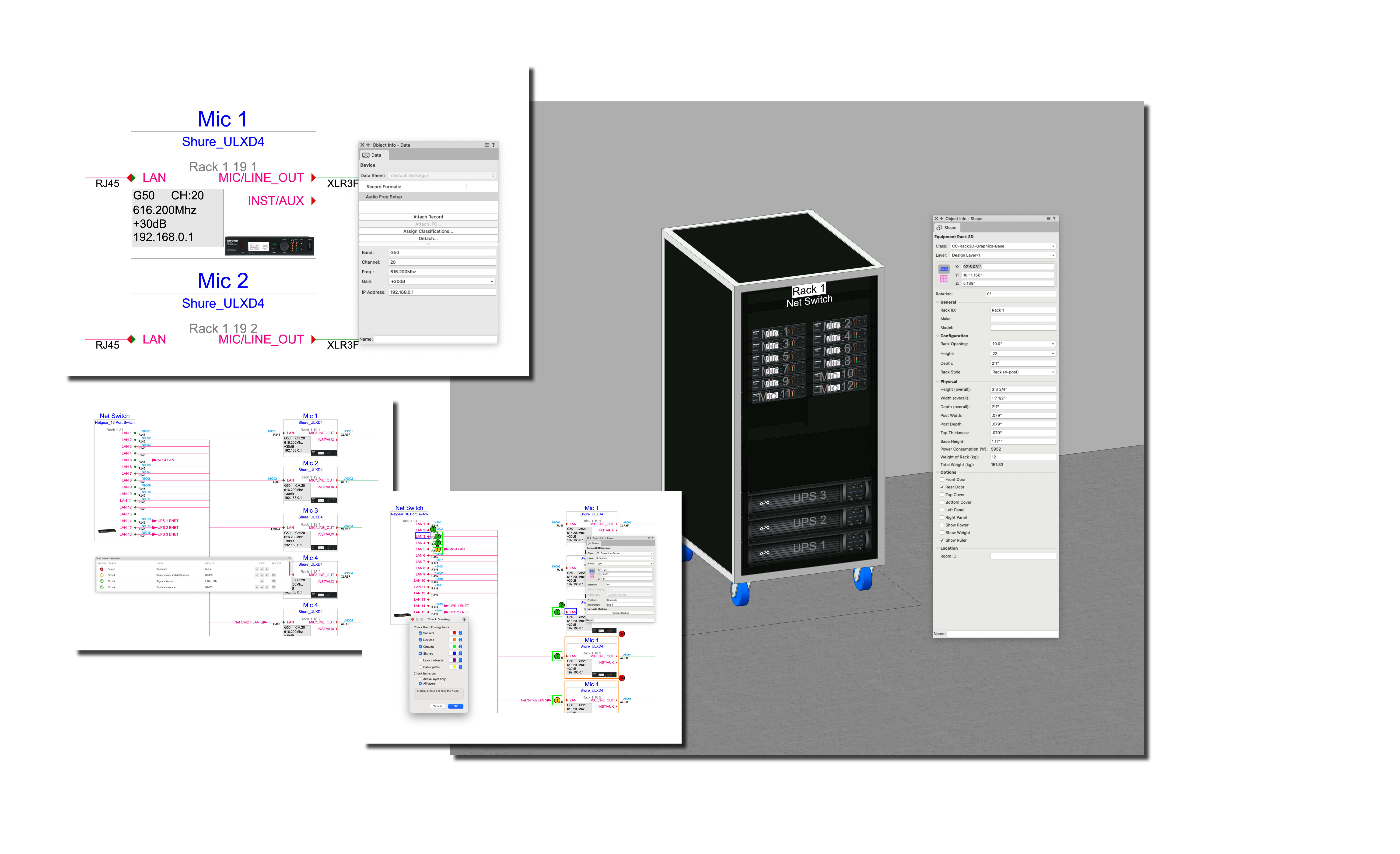
When your schematic’s ready, you can then jump straight into 3D equipment rack modeling. With the 3D Rack Workflow Panel Visualization, you’re able to visualize how gear fits together on-site, working out space, patching routes, or cable runs before you ever hit the venue. This helps you fine-tune layouts, prevent common rigging headaches, and communicate your intent to crew and vendors.
When you’re creating rack geometry, you’re not locked into one-size-fits-all layouts. Adjust shapes and dimensions to match the racks and carts you use on the road or accommodate specialty gear for larger or touring shows. You can match your rack heights, leave space for ventilated panels or power distro, and tweak positions so patching and troubleshooting are easy, no matter the venue.
Worksheets then tie everything together, instantly generating live event paperwork and reports or helping you create your own documentation. Your reports update as you update your design, so you’re always ready for a site walk or last-minute client request.

ConnectCAD 3D Equipment Rack inside a shelled Touring Rack.
Continuous Error Checking for Peace of Mind
Mistakes are part of fast-paced show life, but ConnectCAD helps you catch problems as they happen. Continuous Error Checking or Error Checking tools in ConnectCAD spot duplicate devices and sockets, mismatches, or missing links while you work. You’re able to fix errors early, keep documentation current, and head off issues long before doors open.
The ConnectCAD Status palette also gives you a live overview of the health of your design, so you can see issues at a glance as you build. And when you’re ready to do a full sweep, the Check Drawing command runs a thorough review of your entire system. This combination means you can fix errors early, keep documentation current, and head off issues long before doors open.

ConnectCAD Check Drawing command.

ConnectCAD Status palette.
Communication & Documentation Best Practices
ConnectCAD also supports rock-solid communication habits: as you revise or build AV systems, updates reflect instantly in all your documentation. You can easily coordinate with other designers, techs, or departments as everybody works from the same set of up-to-date drawings and paperwork. When troubleshooting is needed, you’ll have a clear roadmap to every connection and device in your system.
For an even smoother workflow, it’s easy to share reports and other documents directly from Vectorworks. With the Share Reports command, you can generate and share up‑to‑the‑minute system reports directly from your design, making it simple to keep teams aligned and informed. You can also take advantage of the Vectorworks Cloud Document Reviewer to invite collaborators to review, comment on, and sign off on documents from anywhere, right in their browser. These features help streamline approvals, reduce confusion, and aid in last-minute changes.
What Will You Learn Next?
You can learn more about ConnectCAD, AV design, and more with free webinars on Vectorworks University.
With courses like “Streamline AV Design with ConnectCAD,” “ConnectCAD Schematics and Rack Design in Vectorworks,” and countless more, there’s no limit to what you can learn.
VECTORWORKS UNIVERSITY
BROWSE WEBINARSStay in the know with the latest insights
Subscribers receive news, customer stories, success and learning tips, event information, and other important announcements from Vectorworks.
By submitting this form, you agree that Vectorworks, Inc. and its authorized partners may contact you in regards to news, offers, and the use of our software, services, and platforms. Learn more about our privacy practices and your data on our privacy page.*