
As an interior designer, the story your materials tell should flow effortlessly from lifelike 3D renderings to clear, construction-ready 2D documentation. That’s where Vectorworks Architect and its hybrid drawing environment shine. Its features for texture alignment are designed to streamline both your creative and technical processes, saving time and adding confidence that what you envision is what gets built.
Keep on reading to learn more.
Three Essential Texture Features for Interior Designers
Vectorworks Architect equips you with three powerful features for matching visualization and documentation needs:
• Per-Face Texture Mapping
• Surface Hatching Synced with Textures
• Attribute Mapping Tool
Feature #1: Per-Face Texture Mapping
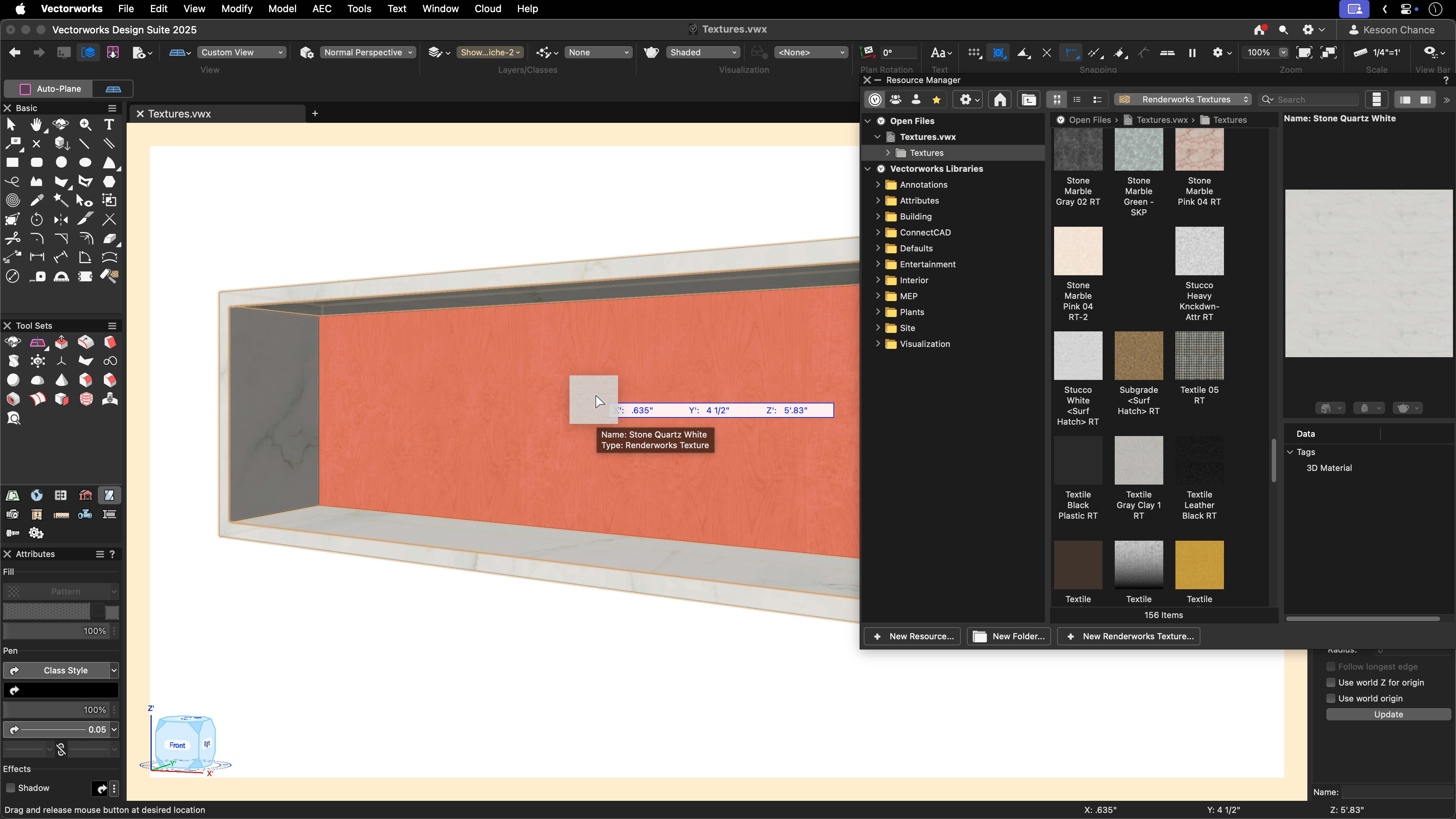
Want to show multiple finishes on a single piece of furniture? Need a statement wall that pops with several materials? Per-Face Texture Mapping gives you complete flexibility.
You can use the texturing tool in Apply to Face mode or simply drag and drop a texture with a shortcut key to apply it to any face of a 3D solid. This approach is perfect for custom joinery, feature walls, and furniture that calls for more than one finish.
A quick tip: when you select a texture in the Object Info palette (OIP), Vectorworks Architect rotates the view to the face you’re mapping. This speeds up precise placement, especially with complex objects. While mapping works at the face level of solid objects, another approach for hybrid objects (like walls) is to assign textures by component. This way, each component has its own texture or hatch and can be overwritten in a similar way as per-face texturing, making it easier to iterate across the entire project.
Feature #2: Surface Hatches Linked to Textures

You can carry the impact created by your 3D work through to your 2D drawings using linked Surface Hatches. These maintain visual fidelity and reduce costly on-site misunderstandings. In the Resource Manager, just edit your texture and assign its corresponding hatch pattern, then make sure Surface Hatches are enabled in Viewport settings.
This connects the dots; your hatch-filled plans and interior elevations now actually match the materials in your renderings. For a smoother construction process, try creating or selecting distinctive hatches for each finish. This helps contractors and clients alike quickly understand your design intention.
Feature #3: Attribute Mapping Tool

It’s not enough for finishes to be present in your construction documentation. They need to look exactly right. The Attribute Mapping tool gives you direct, dynamic control so you can scale, drag, or rotate any applied texture until it aligns perfectly with your vision. Just select the tool from the Basic palette, click on your textured surface, and adjust using the intuitive handles.
This workflow isn’t just for refining stretched or misaligned textures on custom objects. If you change your design later, say, resizing a built-in storage unit, it’s easy to adjust texture alignment so the material’s grain or pattern direction stays consistent. The tool even works on 2D objects that use an image fill, which keeps your renderings and technical drawings polished and professional.
Better Workflows, Beautiful Results

Leveraging all three of these features means you can reduce manual workarounds and stop bouncing between different software for 3D and 2D representations. The result? You spend more time exploring materials and focusing on your clients’ needs, with a lot less time troubleshooting technicalities.
Ultimately, seamless texture alignment means stunning visuals, clearer drawings, and smoother project delivery from concept all the way through construction.
That’s less time worrying about “how,” and more time delighting clients with “wow.”
No Drag. Just Drive. Vectorworks 2026 is Here
That’s right. Vectorworks 2026 is here, meaning you can drive your interior designs even further with insightful workflows, advanced Depth Cueing, intuitive Worksheet Slicing, and more.
VECTORWORKS 2026
LEARN MOREStay in the know with the latest insights
Subscribers receive news, customer stories, success and learning tips, event information, and other important announcements from Vectorworks.
By submitting this form, you agree that Vectorworks, Inc. and its authorized partners may contact you in regards to news, offers, and the use of our software, services, and platforms. Learn more about our privacy practices and your data on our privacy page.*