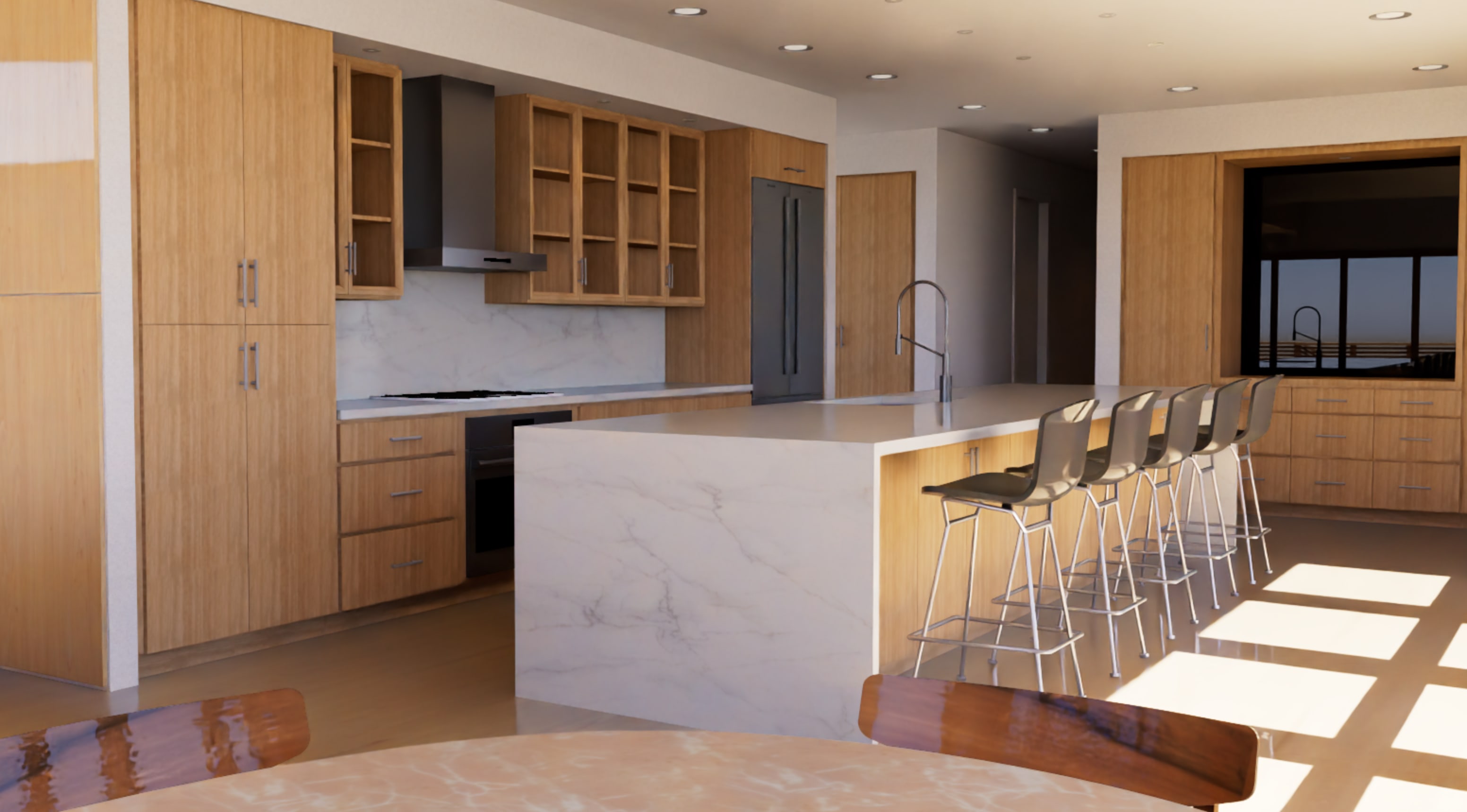
From early studies and coordination to polished client presentations, the needs of your design software evolve alongside your project.
Each rendering option at your disposal in Vectorworks supports a different stage of that journey, whether you need a crisp elevation, a quick lighting study, or a photorealistic hero image.
Hidden Line, Shaded, Renderworks, Redshift, Render Styles, and Maxon’s Redshift for Vectorworks are all available in the same environment, so you can switch between them as your design develops instead of exporting to separate visualization tools.
This article looks at what each rendering option does and when it makes sense to use it, including how to combine them for clear, legible drawings and impactful imagery.
Hidden Line Rendering

What it Does
Hidden Line rendering produces a vector-based line drawing of your 3D model with no pixel-based shading or fills from 3D objects.
Line Weights and Pen Colors come from the objects themselves, which keeps your elevations and sections consistent with your class and layer standards. Because the output is vector-based, you can zoom and print at any scale and still keep crisp, sharp linework.
You can also apply Sketch Effects to the lines for a hand-drawn feel, show Surface Hatches to represent materials, and use Depth Cueing so line thickness or tone shifts from foreground to background. Depth Cueing helps you communicate hierarchy by giving near elements heavier, darker lines, while pushing distant elements back with thinner, lighter strokes.
Dashed Hidden Line is a related mode to Hidden Line that draws occluded or hidden edges as dashed lines, which gives you more control over how complex geometry reads.
When to Use it
- Exterior and interior elevations where you need legible, standards-based documentation with consistent line weights and hatches.
- Detail or isometric views that benefit from Dashed Hidden Line, so concealed edges stay readable during coordination.
- Sheet Layer Viewports where you want to overlay Hidden Line on top of a Shaded, Renderworks, or Redshift background to combine clear edges with textures and lighting.
Many designers rely on Hidden Line as their base for printed sets, then pair it with more expressive modes for client-facing presentations.
Shaded Render Mode
What it Does
Shaded render mode is a real-time rendering option inside Vectorworks. It displays colors, textures, lighting, and shadows directly in your Design Layers and Viewports, which lets you evaluate form, materiality, and light while you work instead of waiting for a final render.
Depth Cueing is available in Viewports, where it uses opacity to convey distance: objects in the foreground render more opaque, while background elements fade back. This creates atmospheric depth directly on sheet layers and cuts down on manual graphic tweaks.
When to Use it
As your primary working mode in design layers, especially when you need immediate feedback on geometry, textures, and lighting.
- To explore a range of looks, from simple “white card” studies through to highly realistic previews, by adjusting texture, lighting, and shadow settings.
- For elevations and perspective Viewports when you want fast, high-quality output that still updates quickly with model changes.
- In combination with Hidden Line, using a Shaded background for color and light with a Hidden Line foreground for clean edges and annotations.
If navigation slows as you add complexity, you can turn Shadows or some lighting options off while modeling, then turn them back on in Viewports or final Saved Views.
Renderworks
What it Does
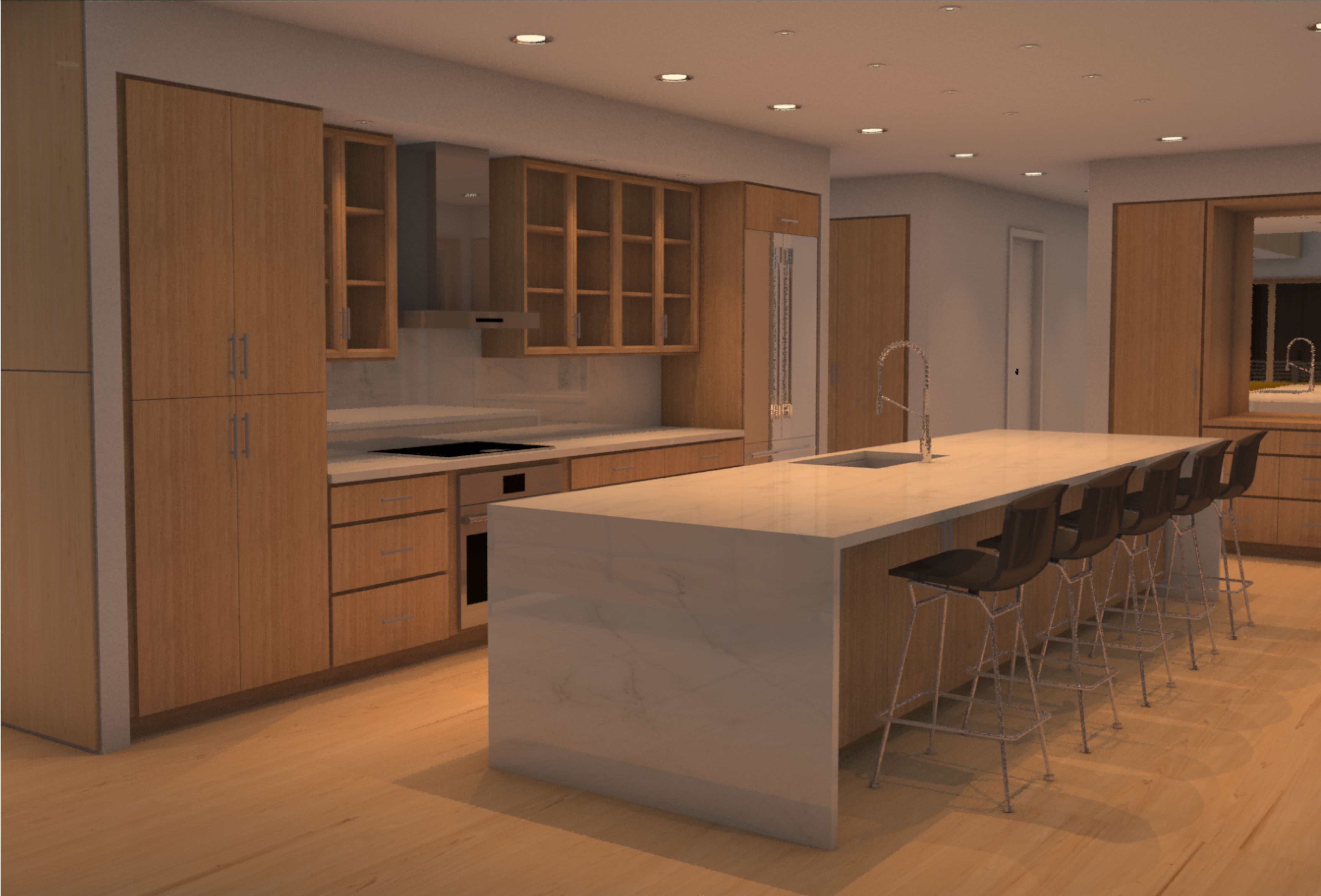
Renderworks is the built-in raytracing mode in Vectorworks, powered by Cineware by Maxon.
It simulates light bouncing in a scene, so it can produce photorealistic results with realistic materials, soft shadows, and accurate reflections and refractions. Vectorworks supports advanced textures, emissive materials, image-based lighting, and camera effects such as depth of field to give your images more photographic qualities.
Renderings from this mode give you more control over realism and fine detail, as well. And, you can create custom Renderworks styles, reuse textures across projects, and refine settings for things like indirect lighting and anti-aliasing when you need pixel-perfect output.
When to Use it
- Interior and exterior perspective Viewports where photorealism will support design decisions or client approvals.
- Marketing imagery or portfolio visuals that benefit from refined reflections, high-quality shadows, and advanced material definitions.
- Scenes where subtle effects such as Glow, Caustics, or detailed Bump Maps are key to communicating the design intent.
Consider iterating your designs with Shaded and then switching selected Viewports to Renderworks as the design matures and presentation deadlines approach.
Render Styles
What They Do
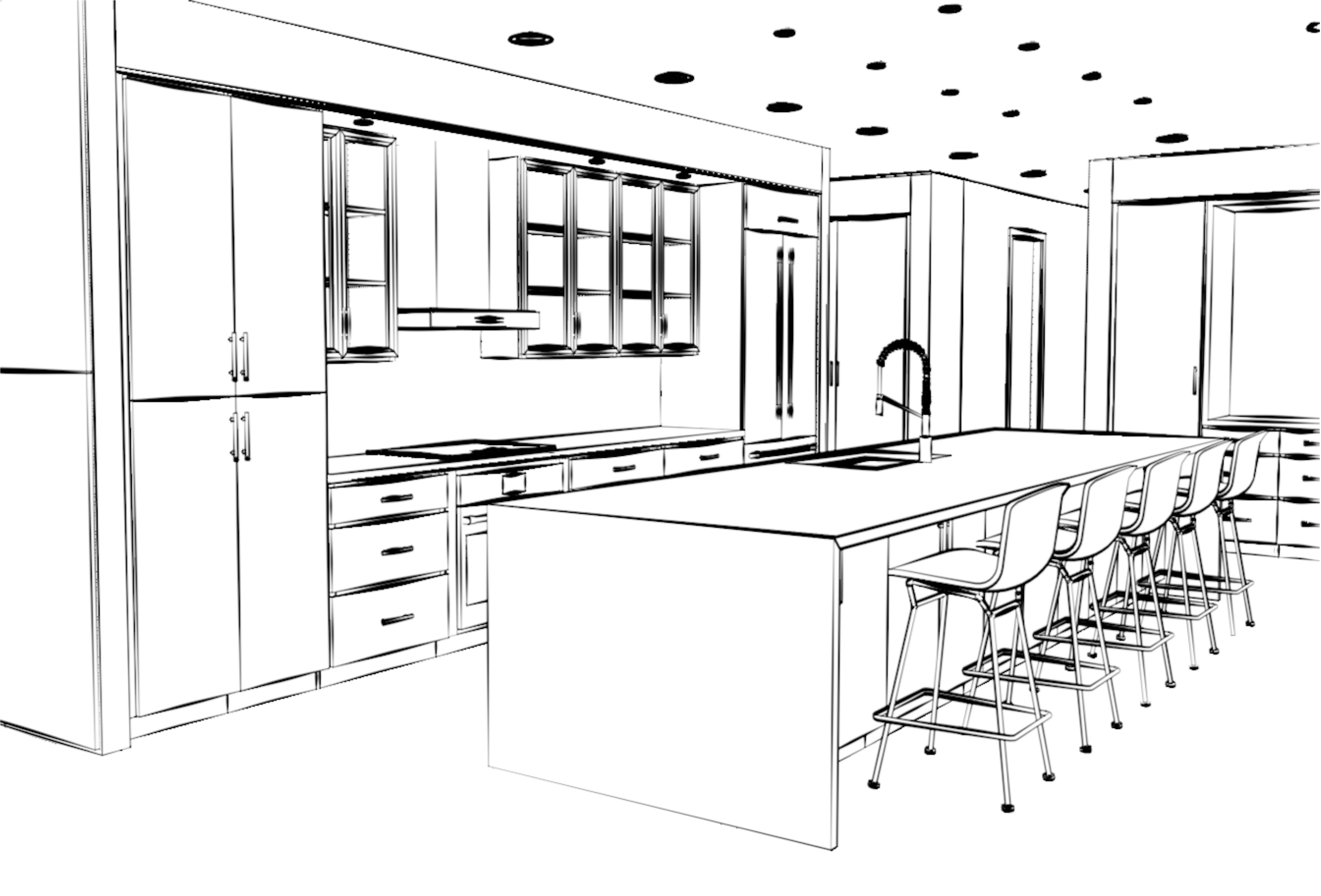
Render Styles let you save collections of rendering settings and reuse them across Viewports and projects.
They can represent both realistic and more expressive looks, including pencil-style or sketch-like visualizations that sit somewhere between a technical drawing and a full photorealistic image. Preset styles for Renderworks, Redshift, and Shaded appear in the Render Styles list, so you can start with proven configurations and then adapt them.
Above all, Render Styles give you consistency. Instead of manually dialing in the same options for every Viewport, you can apply a named style and know you’ll get the same lighting, texture, and edge behavior throughout a set. That’s especially helpful when you need a family of images for a proposal, competition entry, or show package.
When to Use Them
- Presentation drawings where you want a recognizable visual language, such as a pencil or sketch effect across multiple sheets.
- Viewports that need consistent graphic treatment across disciplines or project phases, for example, using one style for concept images and another for final deliverables.
- Teams that share standards, so everyone can apply the same Render Styles rather than recreating settings view by view.
Once you have a library of Render Styles, switching the look of an entire set of Viewports becomes a matter of a few clicks instead of hours of manual adjustment.
Redshift for Vectorworks
What it Does
Redshift for Vectorworks is a deeper integration that focuses on real-time use of Redshift technology in your design workflow.
It connects Vectorworks with Redshift’s broader ecosystem, including access to extensive libraries of props, entourage, and materials geared toward architectural and entertainment visualization.
This integration lets you develop realistic scenes with Redshift assets and then render directly from your Vectorworks model, which streamlines the process of populating spaces with context, people, and objects.
You can also take advantage of Redshift’s performance and advanced shading model while keeping your BIM or design data in a single environment.
When to Use it
- To produce realistic renderings that benefit from readymade Redshift content libraries, so you can concentrate on design rather than building from scratch.
- When you want a smoother bridge to Cinema 4D and the broader Maxon toolset for cinematic animations or higher-end visualization work.
- For teams who need a unified workflow that spans early visualization, detailed rendering, and advanced motion or effects.
For many designers, Redshift for Vectorworks becomes the connective tissue between everyday BIM work and more cinematic storytelling.
The integration is available in the Tools palette rather than the Rendering menu.
The Paradigm Shift of Real-Time Rendering
Learn how embedding real-time rendering into the CAD/BIM workflow is changing architectural design.
Stay in the know with the latest insights
Subscribers receive news, customer stories, success and learning tips, event information, and other important announcements from Vectorworks.
By submitting this form, you agree that Vectorworks, Inc. and its authorized partners may contact you in regards to news, offers, and the use of our software, services, and platforms. Learn more about our privacy practices and your data on our privacy page.*