
Vectorworks 2025’s Object Visibility feature is a game changer in controlling visibilities in your design projects. Object Visibility eliminates the need to rely solely on classes or layers for object management. While classes and layers remain important, the new feature offers a quick alternative for temporary visibility adjustments.
Object Visibility: How It Works
This feature can be used directly in design layers. This makes it easy and fast to hide objects that are obstructing the view of what you’re trying to work on. The most common use of the feature is to select objects you’d like to hide, then click the Hide Selected Objects command under the View tab.

A selected wall with the Hide Selected Objects command highlighted.
Hidden objects can be “ghosted,” which is the default option that turns the object transparent with a slight blue tint. This is useful if you still need to visually refer to this object. Tapping “v” on your keyboard toggles the selected object between ghosted and completely hidden.

The wall selected above shown as “ghosted” after using the Hide Selected Objects command.
You can also hide objects by referencing criteria about them, which is useful when you need to hide or isolate many objects that share characteristics. The Object Visibility command under the View menu reveals the dialog window to accomplish this.
With the release of this feature, the Visibility tool now also has an Object mode. Simply activate this mode, then click on objects to hide them.
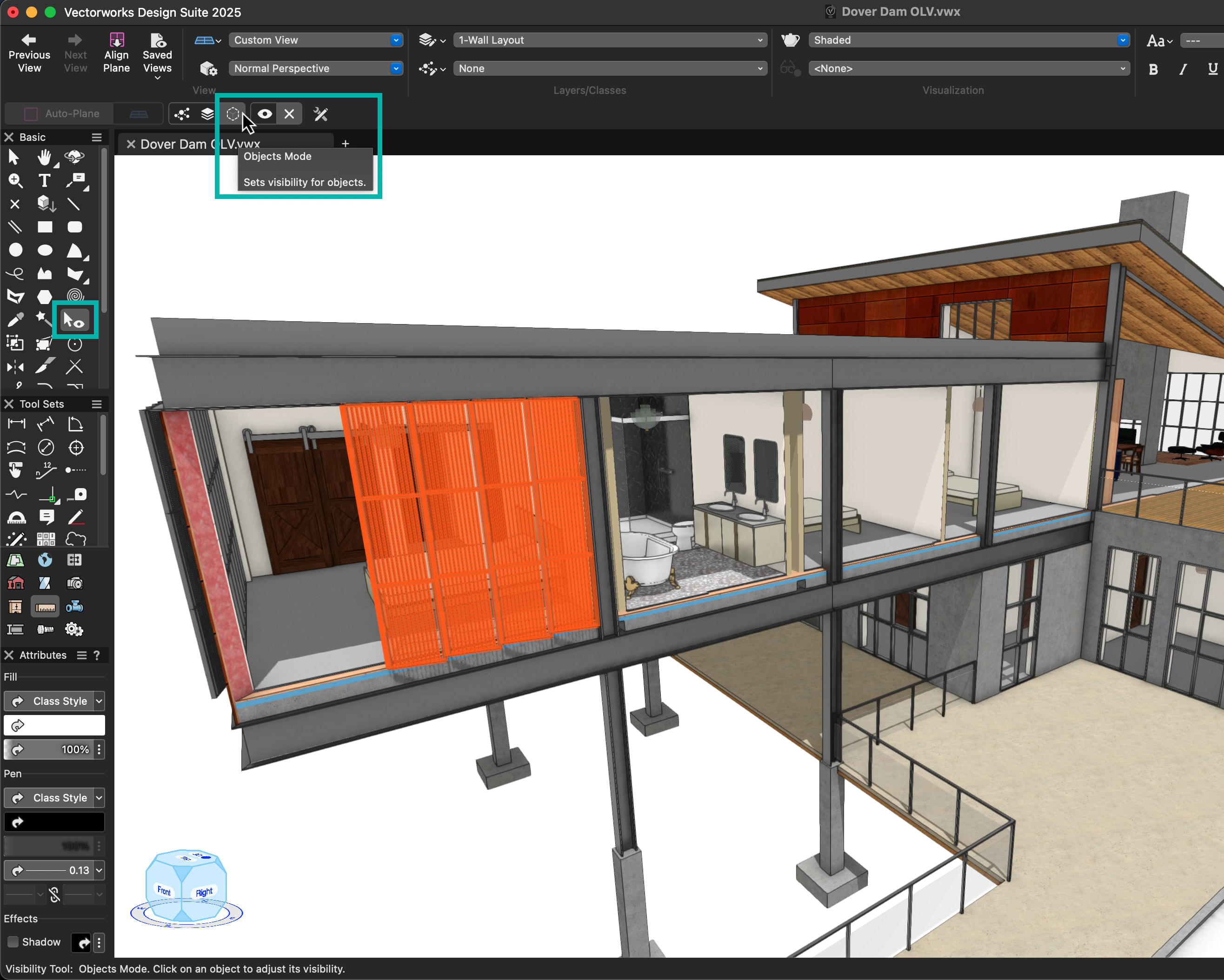
The Visibility tool’s Object mode highlighted.
More-Advanced Applications
Object Visibility settings are preserved in Viewports and Saved Views, which means you can craft tailored views for printing or PDF creation with ease. Optionally saving Object Visibility with Saved Views grants the flexibility to showcase or conceal exactly what you need — whether for working or presentation purposes.
With just a few key saved working views, you can effortlessly navigate through your design, focusing on the details that matter most. It's a game-changer for enhancing productivity and clarity in your design process.
But that's not all. Object Visibility also integrates with Data Visualization, so you can selectively hide or reveal elements in your design based on their data attributes. Object Visibility also introduces an option for objects not directly affected by your Data Visualization settings, allowing you to hide them completely for control over your visual narrative. This leads to cleaner, more impactful visualizations, whether you're presenting to clients or refining your own work.
To make accessing Object Visibility even easier, consider adding the command to your Object Context menu, which you open by right-clicking an object. Object Visibility commands are also available via the Quick Search feature.

The Save View menu with the Save object visibility option highlighted.
Stay in the know with the latest insights
Subscribers receive news, customer stories, success and learning tips, event information, and other important announcements from Vectorworks.
By submitting this form, you agree that Vectorworks, Inc. and its authorized partners may contact you in regards to news, offers, and the use of our software, services, and platforms. Learn more about our privacy practices and your data on our privacy page.*