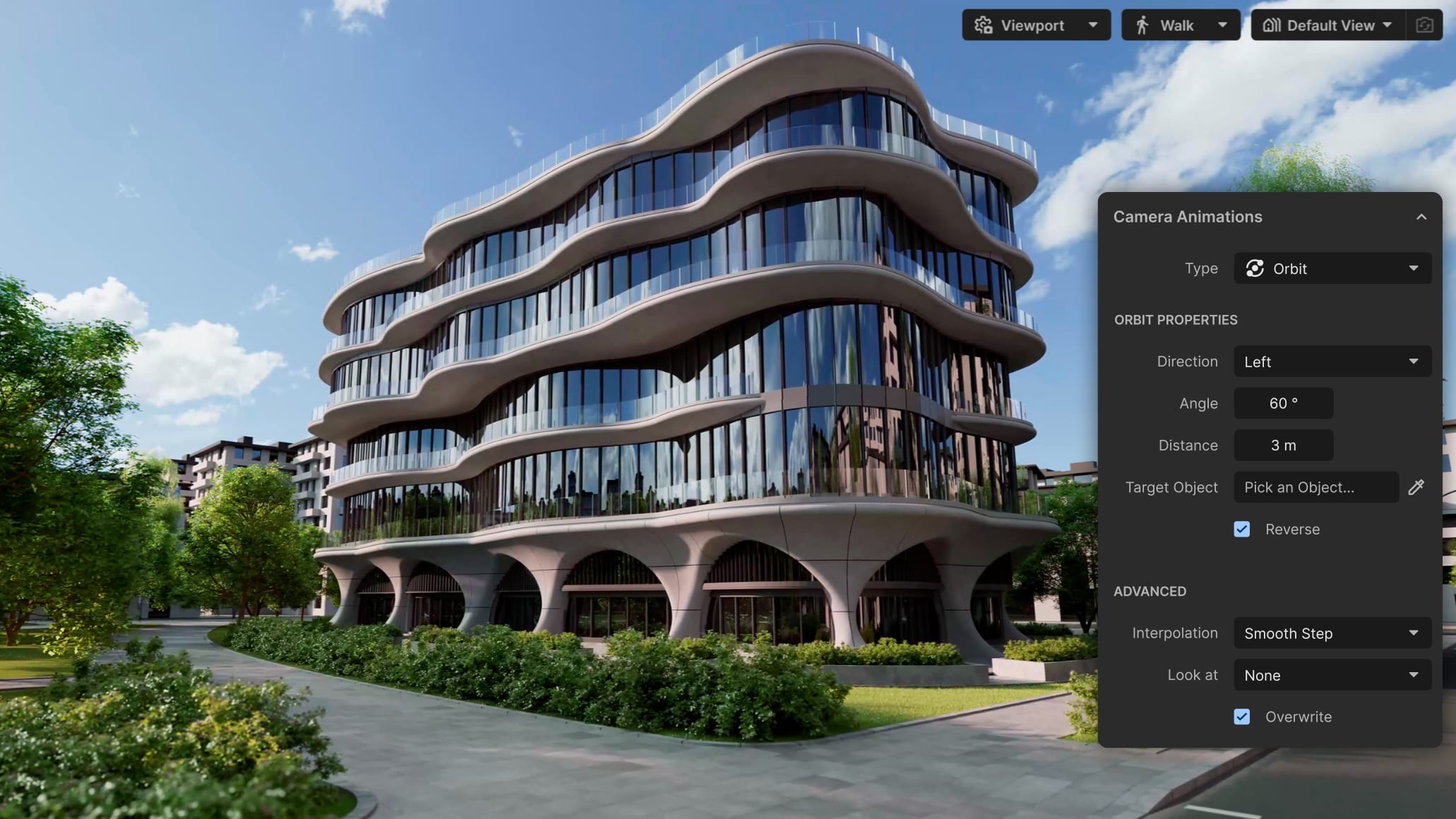
You’ve just finished a design you’re proud of in Vectorworks. The plans are clean, the model is solid, and everything checks out. Then the client asks the question that changes the pace of the project: “Can we see a rendering?”
That moment is where many teams slow down. For many firms, choosing the right architectural rendering software is what determines whether that moment becomes a fast design review or a costly detour into exports, scene rebuilds, and outsourcing.
Architectural rendering bridges that gap. It transforms a 3D model into a believable space using light, materials, and atmosphere. In architectural visualization (archviz) practice, it helps make an idea feel real enough for a client, stakeholder, or planning authority to respond with confidence. For firms used to outsourcing visuals, the right in-house workflow can also reduce delay, preserve design intent, and keep presentation-quality rendering inside the same Vectorworks process.
This guide walks through how modern architectural rendering works, what tools actually matter, and how to produce photorealistic results directly inside your Vectorworks workflow without breaking your process.
WHAT IS ARCHITECTURAL RENDERING?
Architectural renderings are images or animations that simulate real-world lighting, materials, and environmental conditions. It’s a core part of 3D archviz, used to communicate design intent clearly to clients, stakeholders, and planning authorities.
Depending on the deliverable, that output might be an image, a walkthrough animation, a flythrough for a larger site, or an interactive panorama for browser-based review.
In practical terms, rendering turns technical information into something people can understand emotionally.

RENDERING STYLES WORTH KNOWING
Photorealistic rendering is used for final presentations and client approvals. It aims to match real-world lighting and materials as closely as possible.
Conceptual or sketch rendering is faster and looser. It’s useful early in the design process because clients often want to evaluate direction early, before materials and atmosphere are locked into the design.
Real-time rendering updates instantly as you work. It’s ideal for design reviews, internal collaboration, and live client sessions.
Each has its place. Most architects move between them depending on the stage of the project.
RENDERING NATIVELY IN VECTORWORKS
Vectorworks offers a range of render modes so you can move from fast, design‑stage views to polished images and stylized graphics. These modes live in the Render Mode dropdown and in Renderworks Styles, and you switch between them depending on whether you need speed, realism, or a more diagrammatic look.
When you need photorealism fast, that’s where Maxon’s Redshift for Vectorworks synchronization comes into play. It sends your live model into a dedicated, synchronized, real-time renderer, allowing fast, iterative visualization, that creates stunning visuals.
Projects can also be sent to Cinema 4D with a single click for advanced modeling, walkthroughs, animation, simulation, fly-throughs, and offline rendering when more advanced visuals or animation are required.

THE RENDERING WORKFLOW ARCHITECTS ACTUALLY USE
Most architectural rendering workflows follow the same pattern. The difference is how smooth that process feels in practice.
Design and Model in Vectorworks
For many firms, Vectorworks is the starting point. It handles both design and documentation, which makes it the natural place to build the model.
The friction usually starts when it’s time to render. Traditional rendering workflows can be time consuming, even when they’re available directly in your design software. Firms often opt to purchase a dedicated rendering software or outsource to rendering firms. This means time and data loss during the export process, broken materials, camera mismatches, and constant rebuilding that slows decision-making.
Real-Time Visualization as You Work
Real-time rendering changes the pace completely. Instead of waiting for a render to finish, you see updates instantly as you adjust geometry, lighting, or materials.
This is where most iteration happens. You can test ideas quickly, review options with your team, and make decisions faster.
For example, during a client call, you can tweak a façade material or adjust the sun position and show the result immediately. That kind of responsiveness builds confidence.

Final Cinematic Render for Presentation
Once the design is locked, you shift from speed to quality.
This is where photorealistic rendering comes in. You refine materials, balance lighting, and add entourage such as people, plants, and furniture to bring the scene to life.
Entourage is often the difference between a technical image and a compelling one. A well-placed figure, a tree at the right growth stage, or subtle atmospheric haze can change how a space feels.
Typical outputs at this stage include:
- Exterior stills for marketing or planning
- Interior views for client presentations
- Time-of-day variations to show different moods
- Walkthrough-ready scenes for later animation or browser-based review
Animation and Walkthroughs
When still images aren’t enough, animation helps tell the full story.
Walkthroughs are especially effective for interiors, while flythroughs work well for larger sites and master plans. These formats help clients understand scale, movement, and spatial relationships.
Render with Maxon Redshift
See how Redshift integrates directly into your Vectorworks workflow with a 5-minute overview.
WHAT TO LOOK FOR IN ARCHITECTURAL RENDERING SOFTWARE
Choosing the right architectural rendering software is about how well the tool fits into your existing workflow.
CAD/BIM Integration Quality
An important factor is integration between your software and BIM workflows.
A good solution works directly with your Vectorworks model. Changes to geometry, materials, or cameras should update automatically in the render view. The more native and live the integration is, the less likely you are to lose time to exports, broken links, or scene cleanup.
Having to re-import your model every time something changes increases the chances of the workflow breaking under real project pressure.
Asset Library Depth and Realism
Clients don’t just judge buildings. They judge the entire scene.
That means your rendering tool needs a strong library of entourage assets: people, landscape elements, furniture, and vehicles that look believable at close range.
Look for libraries that include variation, believable materials, and enough quality to avoid the cartoonish look that can make an otherwise strong render feel generic.
Mac and Windows Parity
Many architecture firms work on Mac. Some popular rendering tools are Windows-only or offer limited Mac support, creating unnecessary friction.
If your workflow depends on cross-platform consistency, it quickly becomes a deciding factor. This is a practical constraint that gets overlooked, especially for firms standardizing on Apple hardware. For many Vectorworks users, architectural rendering software for Mac is not a niche requirement but a baseline one.
That rules out more options than you might expect. Lumion and D5 Render are Windows-only, while Twinmotion’s Mac experience has historically been more limited. If your team collaborates across macOS and Windows, platform parity is not a nice-to-have; it directly affects staffing, hardware planning, and how reliably a rendering workflow scales across the office.

Real-Time Performance vs. Final Quality
Some tools prioritize speed while others prioritize realism.
The ideal setup gives you both. Architects should be able to iterate in real time during design reviews, then move to presentation-quality output without rebuilding the same scene in another tool. You should be able to iterate quickly in real time, then produce a high-quality final render without switching platforms.
Learning Curve and Workflow Disruption
Even powerful tools fail if they slow people down.
Architects tend to avoid software that requires deep technical setup or a long onboarding. The best solutions feel intuitive, with simple controls for materials, lighting, and scene setup.
In most practices, the best renderer isn’t the one with the deepest feature stack. It’s the one your team will actually use under deadline pressure.
RENDERING WITH REDSHIFT FOR VECTORWORKS — A PRACTICAL OVERVIEW
If you work in Vectorworks daily, keeping your rendering workflow in the same environment is a huge advantage. That’s where Redshift for Vectorworks fits in.
It’s valuable because it grants you the ability to stay inside the design environment while moving from quick previews to photorealistic output with less setup friction.
Real-Time Preview Directly in Your Scene
Instead of exporting your model from Vectorworks, the real-time rendering connection with Redshift is a dedicated, standalone, but synchronized way to achieve fast, consistent visualization.
Changes to geometry, materials, and lighting update live in the render view. This makes it easy to test ideas without interrupting your workflow.
A typical scenario: you’re reviewing a hospitality interior with a client, adjusting finishes while the render instantly updates in the background. There’s no delay, and no need to switch tools.
Atmosphere, Lighting, and Time-of-Day Controls
Lighting can make or break a render.
With physical sun and sky systems, you can shift from bright midday light to golden hour in seconds. HDRI environments and procedural skies give you control over mood and realism. That makes it easier to test a scheme at golden hour, under overcast light, or in a more neutral presentation setup without reworking the scene from scratch.
This flexibility makes it easier to match real-world conditions or create a specific emotional tone.
Extending the Workflow — The Cinema 4D pipeline
For projects that require advanced animation or cinematic effects, the workflow can extend into Cinema 4D without starting from scratch.
With a single-click transfer, objects, materials, lighting, and scene structure carry over intact. That continuity is useful when a project evolves from stills into walkthroughs, event lighting pre-visualization, or more cinematic client presentations.

COMMON RENDERING CHALLENGES AND HOW TO SOLVE THEM
Even with the right tools, rendering comes with a learning curve. Most issues are predictable and fixable.
Render Times Are Too Long
If rendering feels slow, you’re likely using high-quality settings too early.
Use real-time mode for iteration and reserve full-quality rendering for final output. GPU acceleration can significantly reduce render times on modern hardware.
Materials Look Flat or Unrealistic
Flat materials are usually a lighting problem, not a material problem.
Check your light sources first, then refine PBR settings like roughness and reflectivity. If materials still feel wrong, inspect IOR and environment lighting before assuming the material library is the issue. Small adjustments often make a big difference.
Large Scenes Slow Down or Crash
Heavy geometry can overload your system.
Use optimized assets and proxy geometry for complex objects like vegetation. Managing level of detail helps keep scenes responsive. For vegetation, people, and other high-poly assets, proxy geometry and LOD settings usually matter more than one more pass of material tweaking.
The Render Looks Good but Doesn’t Feel Real
This is where many projects fall short.
A technically correct image can still feel empty. Adding people, vehicles, and environmental effects gives the scene life.
Time of day also matters. Warm evening light creates a different emotional response than a bright midday render.
RENDERING OUTPUT FORMATS — WHAT TO DELIVER TO CLIENTS
Different formats serve different purposes.
Still images (JPG, PNG, EXR) are the most common. They’re used for presentations, planning submissions, and marketing.
360° panoramas allow clients to explore a space interactively in a browser.
Walkthrough videos are ideal for interiors and residential projects where movement matters.
Flythrough animations work well for large-scale developments and landscape designs.
Choosing the right format depends on how you want the client to experience the project. For faster feedback rounds, browser-based sharing or cloud review links can sometimes replace the need to send heavy media files back and forth.
FAQ
What is the best architectural rendering software for architects?
There’s no single answer. The best option depends on your workflow and the type of output you need. For Vectorworks users, the most practical option is usually the one that integrates directly into the design environment and eliminates import-export friction.
How long does it take to render an architectural image?
Preview images in real-time rendering are instant. Final high-quality renders typically take a few minutes to around twenty minutes, depending on scene complexity and hardware. Photorealistic walkthroughs and higher-resolution animations often take longer and may be rendered overnight for final delivery.
Can I do architectural rendering without a dedicated GPU?
Yes, but it’ll be slower. GPU acceleration improves performance significantly, especially for real-time rendering. CPU-based workflows are possible, but a dedicated GPU delivers a better real-time experience. Most modern professional workstations and recent Apple Silicon MacBook Pro systems meet a reasonable baseline for many architecture workflows.
What is the difference between real-time and offline rendering?
Real-time rendering programs like Redshift for Vectorworks update instantly as you work, which is useful for iteration and collaboration. Offline rendering focuses on maximum quality and is used for final images, especially when light bounce, atmosphere, and material realism need to hold up in presentation work.
Does Redshift for Vectorworks work on Mac?
Yes. Redshift for Vectorworks supports both macOS and Windows, including Apple Silicon Macs.
Do I need Cinema 4D to use Redshift for Vectorworks?
No. You can complete most architectural visualization tasks directly inside Vectorworks with Redshift. Cinema 4D becomes relevant when a project needs more advanced animation, simulation, or cinematic post-production, and the workflow can extend there without rebuilding the scene.
READY TO BRING YOUR DESIGNS TO LIFE?
If you’re already working in Vectorworks, the fastest way to improve your rendering workflow is to keep everything inside the same design environment. With a Redshift license, see how much time you save when you remove export steps and manual setup.
Ready to Start Rendering with Vectorworks?
Try a free trial of Vectorworks and Redshift for Vectorworks — no outsourcing, no extra software.
Stay in the know with the latest insights
Subscribers receive news, customer stories, success and learning tips, event information, and other important announcements from Vectorworks.
By submitting this form, you agree that Vectorworks, Inc. and its authorized partners may contact you in regards to news, offers, and the use of our software, services, and platforms. Learn more about our privacy practices and your data on our privacy page.*