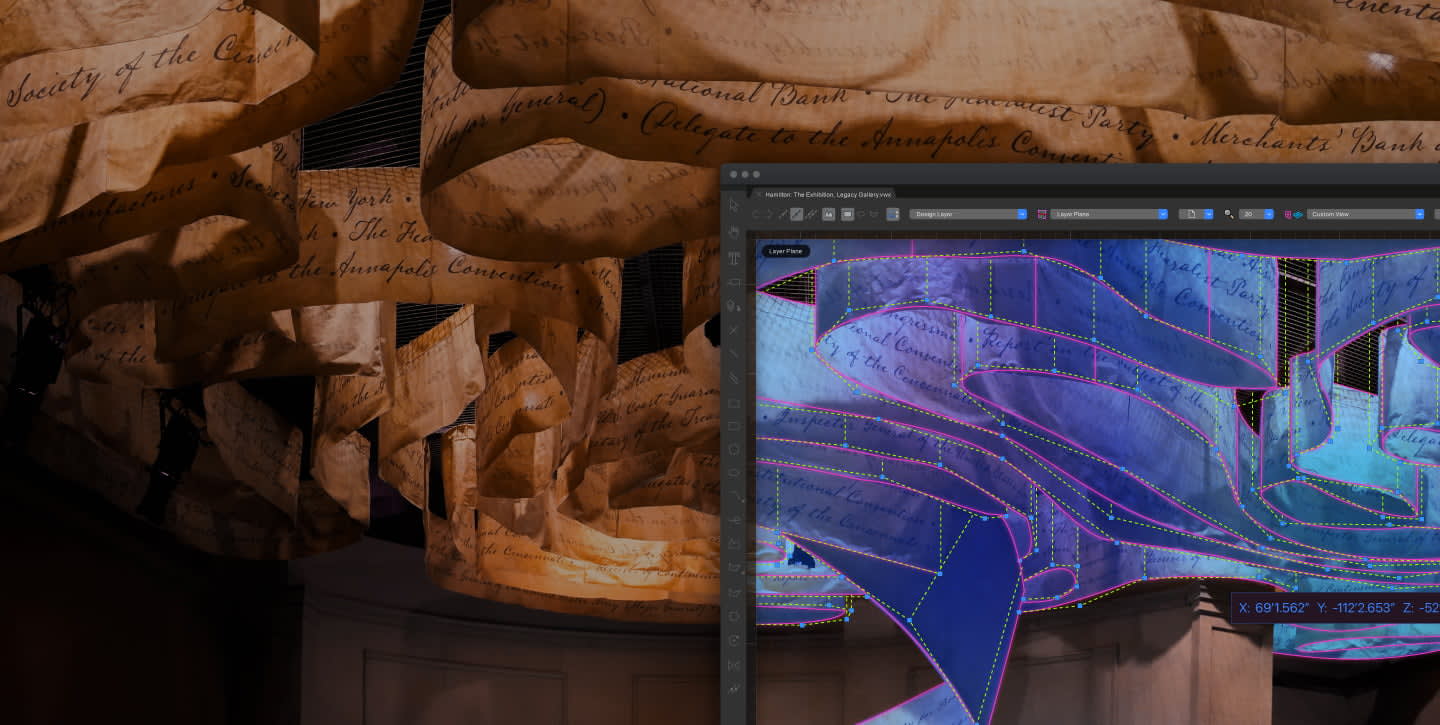
Vectorworks Fundamentals offers side-by-side 2D/3D capabilities and an easy-to-use modeling and documentation engine that works the way you think.
It’s the perfect design solution for any firm, creator, or designer that wants more than just a 3D modeling application.
Geiger Furniture, for example, uses Vectorworks Fundamentals to design high-end furniture and fabrication drawings.

Image courtesy of Geiger Furniture.
In a single software, you can take a design from concept to completion using a suite of modeling and documentation tools. When speaking on the breadth of Vectorworks Fundamentals in Geiger’s workflow, John Leach, program manager of new product development, said, “We’re using Vectorworks throughout the entire process. From design inception to order-entry, to install drawings, and further out.”
In this article, we’ll be talking about how Vectorworks Fundamentals’ flexibility and its modeling tools can help you design without limits.
Flexible Modeling in Vectorworks Fundamentals
Like other Vectorworks products, Fundamentals utilizes a hybrid environment. This means you can switch seamlessly between line drawings and three-dimensional models. An edit made in a 2D view is simultaneously applied to your 3D model, and vice versa. Changes are also automatically reflected in documentation.
The hybrid environment allows you to work however you’d like. The software accommodates you, as opposed to having to adjust your workflow to fit your new design software.
If you’re working on a project that requires spatial planning or more technical considerations, it may be logical to begin designing in the top-plan view that appears when you’re first opening Vectorworks. Use the Split tool, Combine tool, and more to create an initial layout and/or shape.
Or, as we’ve mentioned, you could begin your design in a 3D environment. You can begin using the Push/Pull tool to create 3D shapes, improving upon how you might’ve done this in SketchUp, then use the Deform tool and other tools for editing the 3D geometry. Starting in a 3D environment may allow you to be more expressive and better experiment with shape in the early phases of a design project.
It’s important to remember, also, that you won’t lose any precision in your design or its documentation if you’re starting with a 3D model in Vectorworks Fundamentals. The Heads-Up Display, for example, will allow you to directly input dimensions. Similarly, the Smart Options Display keeps relevant tool options and navigation controls readily accessible, so you can select tools, adjust settings, and move through the interface without interrupting your workflow or shifting focus away from the design.
When modeling in Vectorworks Fundamentals, your design possibilities are as limitless as your creativity.
LEARN MORE ABOUT 3D MODELING
To learn more about the 3D modeling capabilities of Vectorworks design software, check out the video below:
Stay in the know with the latest insights
Subscribers receive news, customer stories, success and learning tips, event information, and other important announcements from Vectorworks.
By submitting this form, you agree that Vectorworks, Inc. and its authorized partners may contact you in regards to news, offers, and the use of our software, services, and platforms. Learn more about our privacy practices and your data on our privacy page.*